Ecommerce Customer Segmentation: 6 Segments to Build First
The six customer segments a Shopify or WooCommerce store should build first, how to define each from your own order data, and what to email each one.
Your next campaign goes to everyone on your list. The person who subscribed yesterday and has never bought gets it. So does the customer who has ordered eight times, and the one whose last order was a year ago. They all get the same "20% off this weekend" email.
None of them is wrong to receive email from you. They just need different emails. The new subscriber needs a reason to place a first order. The eight-time customer doesn't need a discount to hear about something new. The customer from a year ago needs a reason to come back.
Customer segmentation is how you send each of them the right one. This guide gives you six segments built only from data your store already has: orders, order dates, and email subscription status. For each segment you get the rule, the email it gets, and how to build it in Shopify or WooCommerce.
Quick answer
Start ecommerce customer segmentation with these six segments. Each one gets a different email.
| Segment | Who's in it | What they get |
|---|---|---|
| 1. Subscribers who never bought | Subscribed to email marketing, no orders | Your welcome series, then your regular newsletter |
| 2. First-time buyers | One order, placed within your reorder gap | Post-purchase emails that lead to a second order |
| 3. Repeat customers | Two or more orders | New products, restocks, and products that go with what they bought |
| 4. Top customers | Your highest order counts or spend, for example four or more orders | Thanks and early access, without a discount by default |
| 5. At-risk customers | Last order between one and two reorder gaps ago | A reminder to reorder |
| 6. Lapsed customers | Last order more than two reorder gaps ago | A short win-back series |
Your reorder gap is the typical number of days between a customer's first and second order at your store. You work it out from your own orders (see below). Until you have, use how long one order of your main product lasts.
One rule applies to all six: a segment you send marketing email to includes only people subscribed to email marketing.
What is customer segmentation in ecommerce?
Customer segmentation means grouping your customers by what they have done, so each group gets email that fits. For a small store, the most useful data is what people bought and when: how many orders, how much they spent, and how long ago they last ordered. It tells you more about what a customer needs from you next than their age or city does.
That idea has a name: RFM, short for recency, frequency, and monetary value. Shopify uses it in its customers reports. Every customer gets a score from 1 to 5 for the days since their last purchase, their total number of orders, and their total spend. Shopify then sorts customers into 11 RFM groups, including Champions, At risk, and Dormant. The scores compare customers with others in your store, not with an industry standard.
The six segments in this guide are a simpler version of the same idea, with rules you can read and change.
Why bother? Because each segment needs a different email. Customer lifetime value is the total of everything a customer buys from you. It grows only when they come back.
Which six segments should you build first?
The six segments sit on two scales: what a customer has bought, and how long it has been since their last order.

A customer can be in one segment from each scale at once. A repeat customer can also be at risk, for example. Treat the rules below as starting points, and adjust them once you see how big each segment is.
1. Subscribers who have never bought
Rule: subscribed to email marketing and zero orders.
These people asked to hear from you and haven't ordered yet. They need the basics: what you sell, who it's for, and a reason to try it. That's the job of a welcome email series. After the series, they move to your regular newsletter.
People who subscribe by ticking the box at checkout aren't in this segment, because they have an order. That's correct: they just bought, so a "welcome, here's 10% off your first order" email would land badly.
2. First-time buyers
Rule: exactly one order, placed within your reorder gap.
A first order is a trial. The second order tells you the product earned a place in their routine. First-time buyers need help getting good results from what they bought, then a nudge toward what to try next. Our 30-day plan for your first 100 customers lays out those emails.
When a first-time buyer passes your reorder gap without a second order, they move to the at-risk segment.
3. Repeat customers
Rule: two or more orders.
Repeat customers already trust you. Tell them about new products and restocks first, and suggest products that go with what they bought. A customer who bought your cleanser twice is a better audience for your new moisturizer than someone who has never ordered.
They don't need a discount to open an email about something new. Save discounts for the segments that need a push.
4. Top customers
Rule: the customers with your highest order counts or spend. For example, four or more orders, or total spend above an amount you choose.
Pick a threshold that gives you a group small enough to treat personally. Thank them, give them early access to launches, or send a sample of something new with their next order. Keep big discounts out of their emails by default. Check how many of them used a code on past orders: if most bought without one, a discount only costs you margin.
5. At-risk customers
Rule: last order more than one reorder gap ago, but less than two.
These customers have gone past the point where half of your repeat customers have placed their second order. They haven't left, but they may be running low, or they may have tried something else. Send a reminder timed to when the product usually runs out: what they bought, how to reorder, and one product that goes with it. One or two emails is enough.
6. Lapsed customers
Rule: last order more than two reorder gaps ago.
These customers have stopped buying. Send a short win-back series of two or three emails: what's new since their last order, a reason to come back, and an offer in the last email if you want to use one. People who don't respond move to a less frequent schedule, instead of getting every campaign you send.
How do you decide when a customer is lapsed?
It's tempting to pick a round number like 90 days. But "lapsed" depends on what you sell. A customer who buys a 30-day supply of supplements is overdue after six weeks. A customer who bought a winter coat isn't overdue after six months.
So use your own reorder gap: the median number of days between a customer's first and second order. Then:
- At risk means their last order was more than one reorder gap ago.
- Lapsed means their last order was more than two reorder gaps ago.
Use the median, not the average. A few customers who come back after a year would pull the average up and make everyone else look on time.
The quick way: count 20 customers by hand
This works in Shopify and WooCommerce, and takes about half an hour.
- Open the order history of 20 customers who have ordered at least twice.
- For each one, write down the number of days between their first and second order.
- Sort the 20 numbers from smallest to largest. Your reorder gap is the average of the 10th and 11th numbers.
The thorough way in Shopify: export your orders
On the Orders page of your Shopify admin, click Export and choose Orders by date. Start the date range at your first sale, so each customer's first order is in the file. Shopify emails you a CSV file of the orders in that date range. Then, in a spreadsheet:
- Keep one row per order. An order with several products takes up several rows, and the extra rows leave most fields blank.
- Sort by the Email column, then by Created at.
- Add a column that numbers each customer's orders: 1 for their first order, 2 for their second, and so on.
- On each row numbered 2, subtract the date of that customer's order 1. That's the days between their first and second order.
- Use
=MEDIAN()on those numbers.
If the spreadsheet steps are more than you want to do, the 20-customer count is good enough to start.
If you have fewer than about 20 repeat customers, there isn't enough data yet. Use how long your product lasts as a first guess, and work it out again in a few months.
If your products last very different lengths of time, say a 30-day serum and a body brush that lasts a year, one store-wide gap won't fit every customer. Start with the store-wide gap anyway. Product-based reminders can come later.
How do you build these segments in Shopify or WooCommerce?
In Shopify
Go to Customers > Segments and click Create segment. Each segment is a short query in Shopify's segment editor. Type the conditions, click Run query, and Shopify shows how many customers match above the editor. Then click Save segment and name it.
Here are the six segments as queries, for a store with a 50-day reorder gap. Replace 50 and 100 with your own gap and twice your gap.
| Segment | Query |
|---|---|
| 1. Subscribers who never bought | email_subscription_status = 'SUBSCRIBED' AND number_of_orders = 0 |
| 2. First-time buyers | number_of_orders = 1 AND first_order_date >= -50d |
| 3. Repeat customers | number_of_orders >= 2 |
| 4. Top customers | number_of_orders >= 4 |
| 5. At-risk customers | number_of_orders >= 1 AND last_order_date BETWEEN -100d AND -50d |
| 6. Lapsed customers | number_of_orders >= 1 AND last_order_date < -100d |
The filter names come from Shopify's segment filter reference, where -50d means 50 days ago. We put these queries together from that reference, so run each one and check that the count looks right before you save it.
Only segment 1 includes the subscription condition, because it's part of what defines that segment. Shopify Messaging filters out customers who don't accept email marketing when it sends. The count above the editor includes everyone, though. To see how many people you can actually email, add AND email_subscription_status = 'SUBSCRIBED' while you check the size. If you export a segment to another email tool, keep that condition in every query.
Two shortcuts:
- RFM groups. The
rfm_groupfilter builds a segment from one of Shopify's 11 groups, for examplerfm_group = 'AT_RISK'. Shopify's "At risk" means customers without recent purchases but with a strong history of orders and spend. That's narrower than the at-risk segment above, which uses your reorder gap. - Sidekick. Shopify says you can ask Sidekick to write a segment from a plain-language description. Read the query it writes, and check the count before you save.
To send to a segment, open it, click Use segment, and choose Email to create a Shopify Messaging campaign. The same menu can create a discount for that segment.
In WooCommerce
Go to WooCommerce > Customers. The Customers report lists registered customers and guests. Its advanced filters include Number of orders, Total spend, Average order value, and Last active date, and you can combine filters so customers must match all of them or any of them. Download exports the current view as a CSV file.
Here is how the six segments map to the report's filters, with your reorder gap in place of "gap":
| Segment | Customers report filters |
|---|---|
| 1. Subscribers who never bought | Not possible here: the report has no consent data. Build it in your email tool. |
| 2. First-time buyers | Number of orders is 1, and Last active date within one gap |
| 3. Repeat customers | Number of orders is 2 or more |
| 4. Top customers | Number of orders is 4 or more, or Total spend above your threshold |
| 5. At-risk customers | Last active date between one and two gaps ago |
| 6. Lapsed customers | Last active date more than two gaps ago |
The report is good for counting your segments and checking the rules. Two cautions before you send email from it:
- WooCommerce's documentation doesn't define "Last active" as the date of the last order. Check it against a few customers' order histories before you use it for segments 2, 5, and 6.
- The report has no email marketing consent column. Check consent in the form or plugin that collected each signup.
A CSV is also a snapshot. It's out of date the moment someone places an order. For segments you send to every week, use an email tool that syncs your WooCommerce orders and keeps segments up to date.
In your email tool
Whatever you send from, the segment needs your order data. If your email tool only holds a list of addresses, none of these rules work. See how to sync Shopify customers with Mailchimp if that's your setup.
The segment should also update on its own. Shopify segments add and remove customers automatically as their data changes.
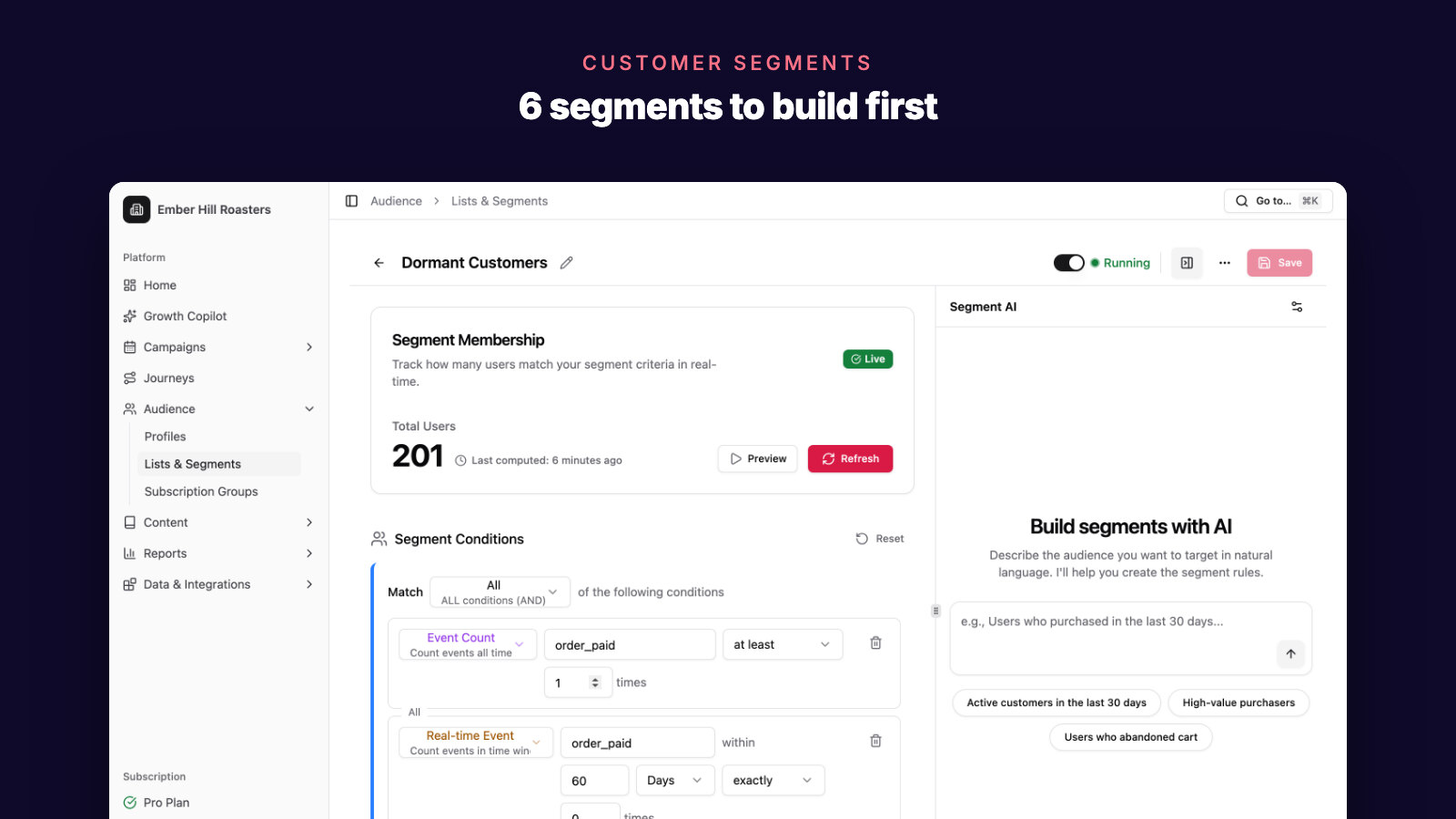
In SegmentFlow, connecting Shopify or WooCommerce creates 11+ ecommerce segments automatically, including First-Time Buyers, Repeat Customers, and High Spenders (5+ paid orders). You can change any default's criteria to match your reorder gap, or describe a new segment in plain English. The AI builds the rules against your store data and shows you the size before you save, so you can check its rules the way you'd check your own.
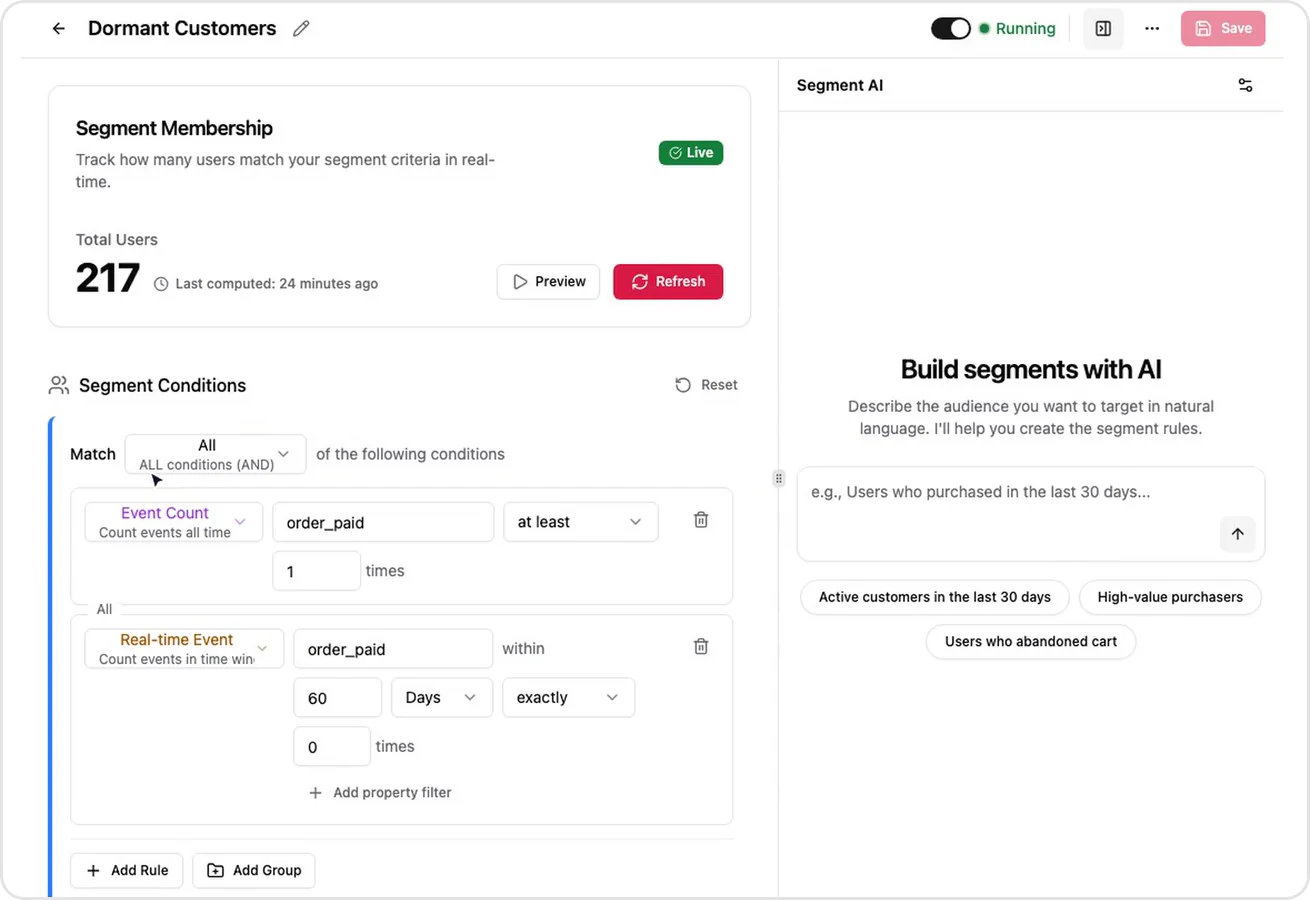
A default segment in SegmentFlow, from a demo coffee store. The member count updates on its own, the conditions can be edited, and the Segment AI panel on the right builds rules from a plain-English description. You check the rules and the count before you save.
How many segments does a small store need?
Six is enough to start. Four of them drive automated emails: subscribers who never bought, first-time buyers, at-risk customers, and lapsed customers. The other two, repeat and top customers, are audiences for your campaigns.
A segment earns its own email when two things are true: the message is different, and the group is big enough to matter. If your top customers are 12 people, a personal email from you will do more than a designed campaign.
Segments overlap, so decide which email wins. With a 50-day reorder gap, a top customer whose last order was four months ago is in both the top and lapsed segments. We suggest the win-back email takes priority over your regular promotions, and that a top customer's win-back is a personal note, not a bigger discount.
How often each segment hears from you is a separate decision. Our guide to email frequency for ecommerce covers it segment by segment.
Once the six are running, two more are worth adding:
- Product-based segments: customers who bought one product but not another. They're the audience for a cross-sell email. Shopify's
products_purchasedfilter handles this. - Engaged subscribers who haven't bought: people who click your emails but have no orders. They might need a different offer from people who never click.
Example: a fictional skincare store's six segments
Morrow & Moss is a fictional Shopify store that sells natural skincare, run by one founder, Lena. It is a teaching example, not a SegmentFlow customer. All numbers are illustrative.
Lena has about 1,400 past customers and sends one newsletter a month to everyone. She opens 20 repeat customers' order histories and counts the days between their first and second order. The 10th and 11th numbers are 47 and 49, so her count gives 48 days. An order export gives 52 days, so she uses 50.
Her segments, built with the queries above:
| Segment | Rule | Size |
|---|---|---|
| 1. Subscribers who never bought | Subscribed, no orders | 900 |
| 2. First-time buyers | One order in the last 50 days | 110 |
| 3. Repeat customers | Two or more orders | 400 |
| 4. Top customers | Four or more orders | 70 |
| 5. At-risk customers | Last order 50–100 days ago | 180 |
| 6. Lapsed customers | Last order more than 100 days ago | 820 |
Segments 2 to 6 add up to more than her 1,400 customers because they overlap. A repeat customer can also be at risk.
Her first month with segments:
- New subscribers get her four-email welcome series as they sign up. The 900 who subscribed before she set it up get one short "here's who we are" email and stay on the monthly newsletter.
- First-time buyers get a "how to use it" email after delivery, and a reorder reminder around day 40, before they reach her 50-day gap.
- Top customers hear about her new night cream two days before anyone else, in a short note from Lena with no discount.
- Repeat customers get the launch email on launch day.
- At-risk customers get one reminder: the product they last bought, a reorder link, and the night cream.
- Lapsed customers get a three-email win-back series. Anyone who doesn't click in any of the three moves to a quarterly newsletter.
At the end of the month, Lena counts orders from each segment within 14 days of its email. Illustrative arithmetic, not a benchmark: if 21 of the 180 at-risk customers ordered within 14 days, that's 21 ÷ 180, about 12%. The number matters only next to her own later months. With 180 people, one order more or less moves the rate by about half a point, so she changes the reminder only if the rate stays lower or higher for two or three months.
FAQ
What is the difference between a segment and a list?
A list holds the people you add to it, for example through a signup form or an import. It stays the same until you change it. A segment is a rule. People join and leave it on their own as their orders change. A "repeat customers" segment includes a customer from the day of their second order, without you doing anything.
Do I need AI or predictive segments?
Not to start. The six segments here are rules built from your orders, and they work with a few hundred customers. Predictive features need more data. Klaviyo's CLV predictions, for example, need at least 500 customers who have placed an order, at least 180 days of order history with orders in the last 30 days, and some customers with three or more orders, according to Klaviyo's help center. Shopify's predicted spend tier needs a store with over 100 sales. SegmentFlow doesn't offer predictive segments.
Several tools, including Shopify, Klaviyo, and SegmentFlow, can turn a plain-English sentence into segment rules. That saves you learning the filters. You still need to check the rules and the count before you save.
How often should segments update?
Ideally on their own, every time an order comes in. Shopify segments update automatically, though in a large store a new segment can take a few moments to finish calculating. A CSV export is a snapshot from the moment you downloaded it. In SegmentFlow, segments refresh every few minutes, and time-based rules like "no order in 100 days" refresh every hour.
Can I segment customers who didn't subscribe to marketing?
You can build the segment. Shopify's email_subscription_status filter has a NOT_SUBSCRIBED value, for example. That's useful for counting, such as how many repeat customers never opted in. But don't send them marketing email. Shopify Messaging won't email them anyway. Consent rules depend on where your customers live, so confirm what applies to your store.
How do I stop a customer getting a reminder and a win-back in the same week?
The at-risk segment ends where the lapsed segment begins, so a customer is never in both. The clash happens at the border. With a 50-day reorder gap, a customer who gets the reminder on day 95 enters the lapsed segment on day 100. Leave room between the two. Start the win-back series a week or two after someone enters the lapsed segment, or skip anyone who got the reminder in the last 14 days.
Build your six segments this week
Work out your reorder gap first, with the 20-customer count. Then build the two segments with the clearest job, subscribers who never bought and lapsed customers, followed by the other four. Check each segment's size before you write a single email for it.
If you use SegmentFlow, start from the default segments and change their criteria to match your reorder gap. Journeys can start when someone enters a segment, so a customer who becomes lapsed can get your win-back series automatically. Describe the journey in plain English: Journey AI builds the steps and timing, Email AI drafts each email, and you review everything before it goes live. See how email journeys work.
Related Posts
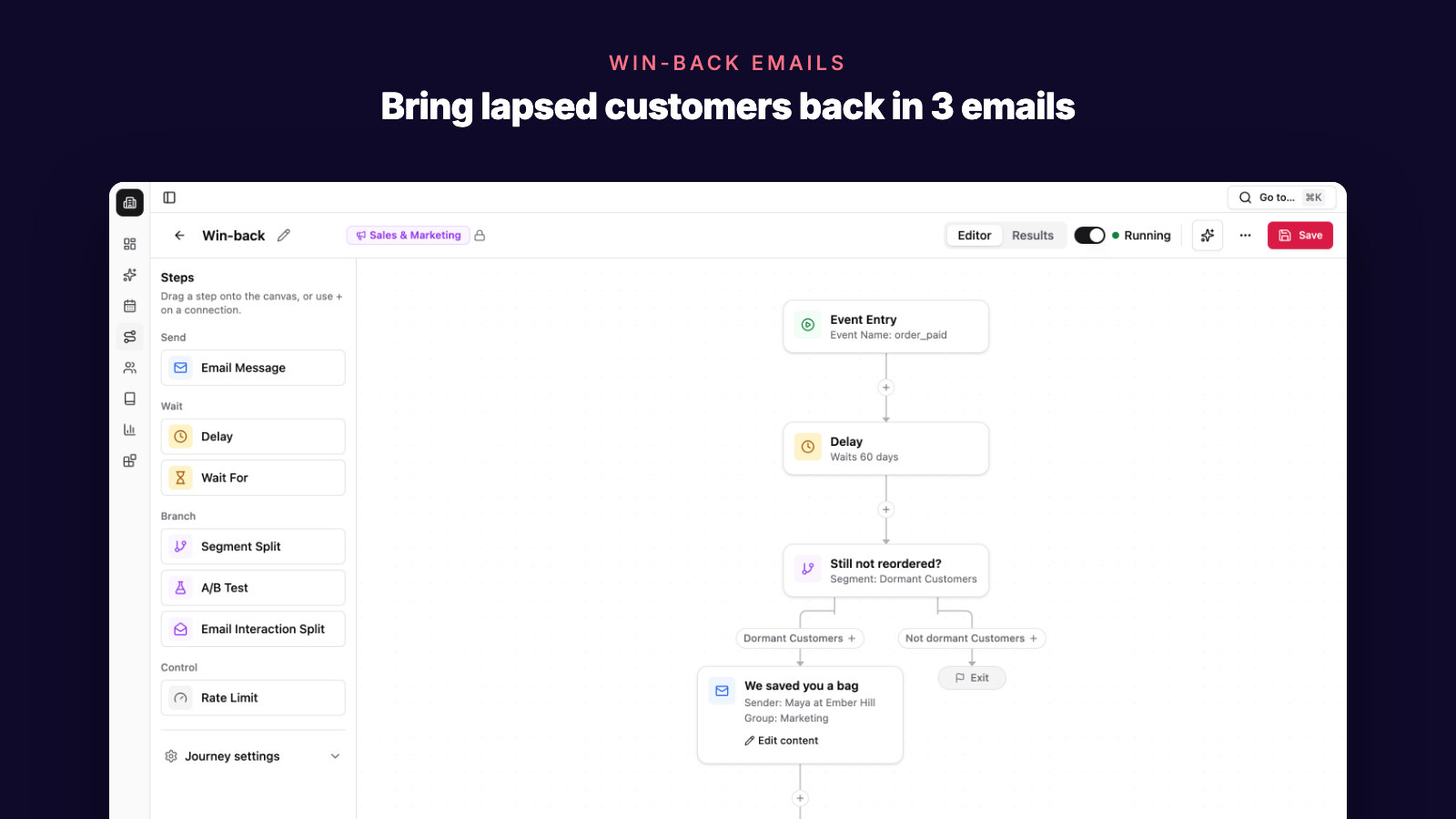
Shopify Win-Back Email Series: 3 Emails for Lapsed Buyers
A 3-email win-back series for Shopify and WooCommerce stores: who counts as lapsed, what each email says, whether to offer a discount, and when to stop.
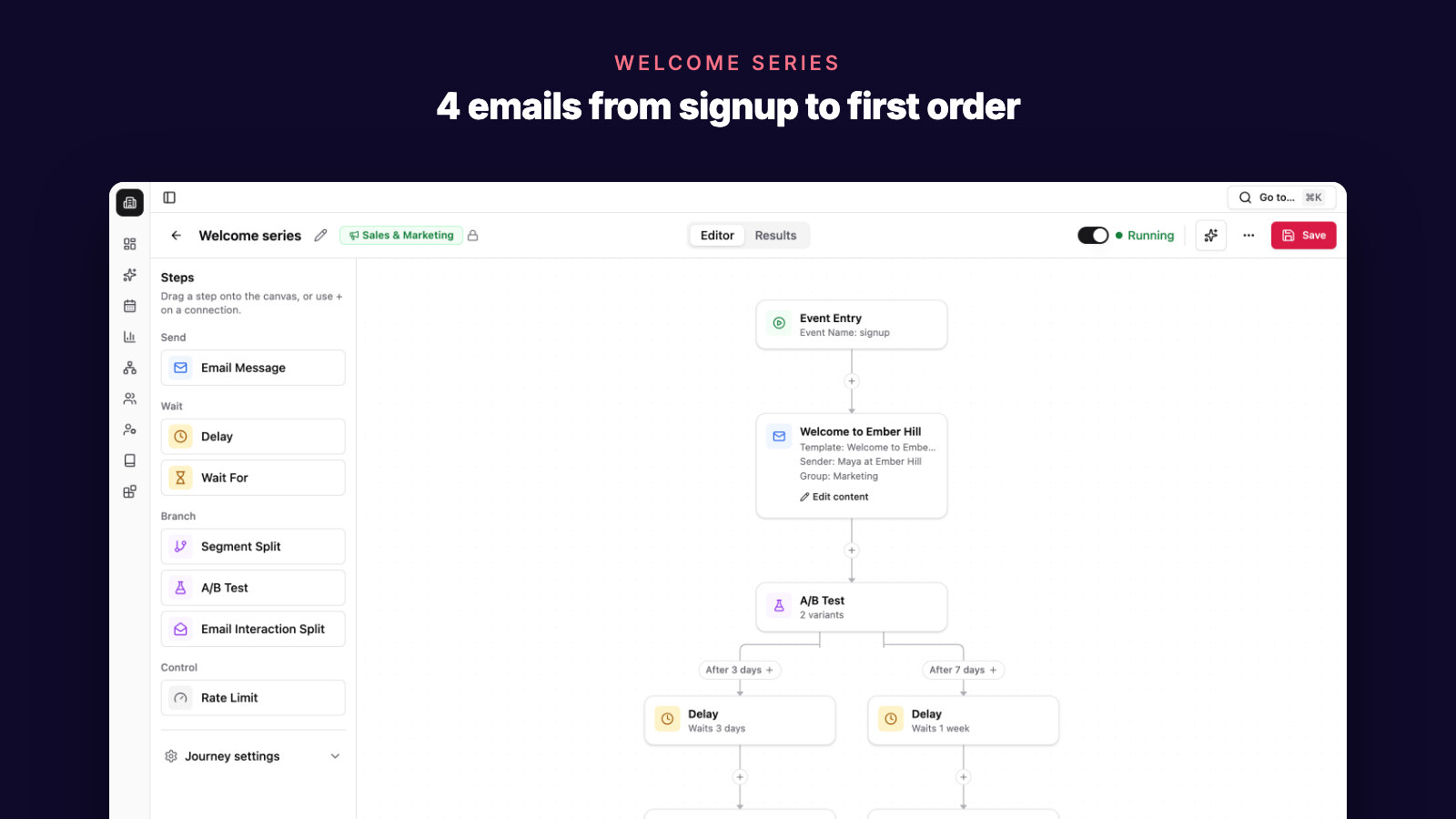
Shopify Welcome Email Series: 4 Emails to a First Order
A 4-email welcome series for Shopify and WooCommerce stores: who gets it, what each email says, whether to offer a discount, and when to stop.
5 Best Abandoned Cart Email Tools for Ecommerce in 2026
Compare the best abandoned cart email tools for ecommerce stores: AI recovery workflows, Shopify and WooCommerce data, discounts, segmentation, and revenue attribution.