Shopify Win-Back Email Series: 3 Emails for Lapsed Buyers
A 3-email win-back series for Shopify and WooCommerce stores: who counts as lapsed, what each email says, whether to offer a discount, and when to stop.
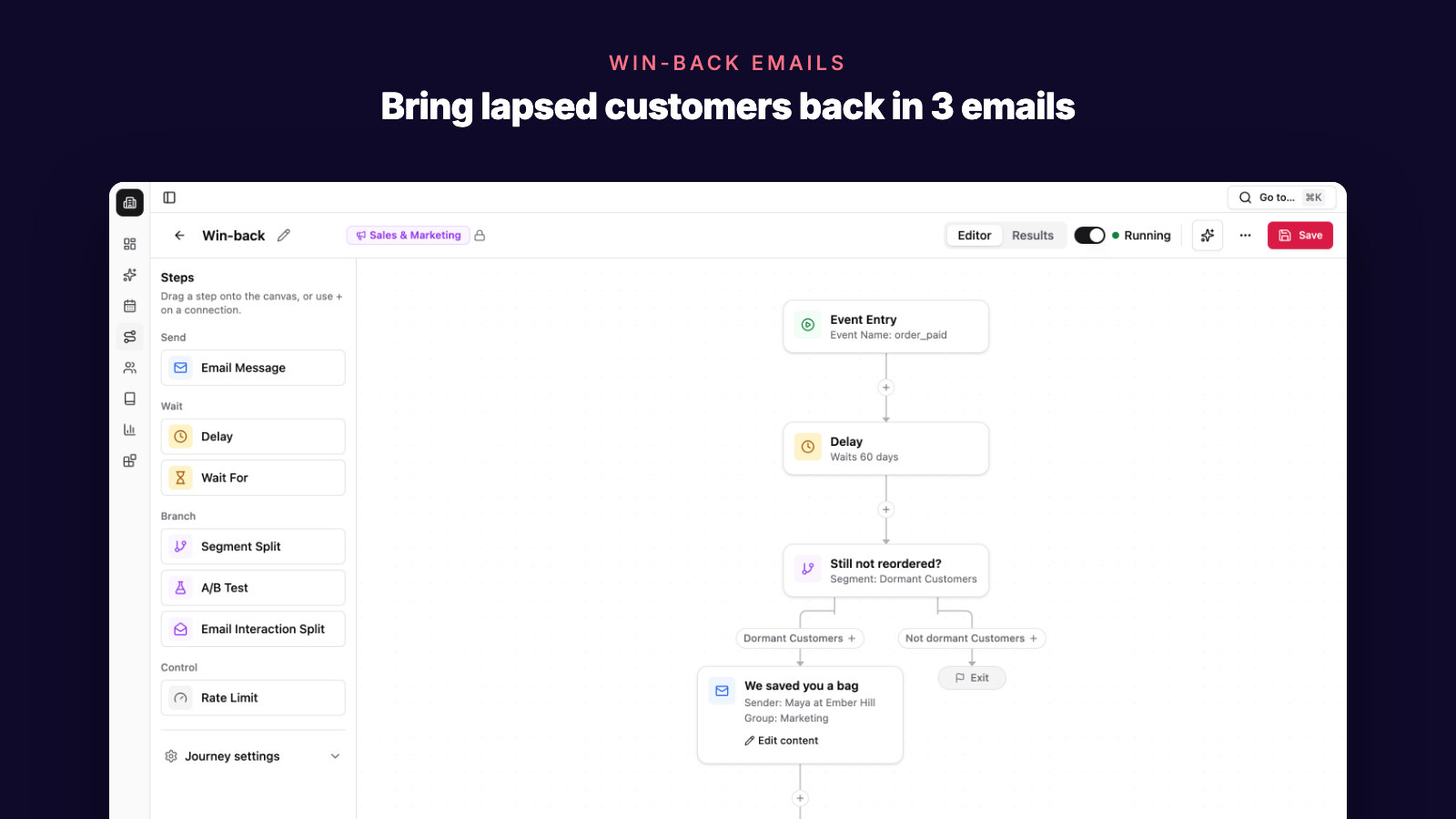
Look at your customer list and sort it by last order date. Near the bottom are people who bought from you once or twice, maybe more, and then stopped. Some ordered months ago. Some ordered last year.
Right now they probably get every newsletter you send, or nothing at all.
These customers are not strangers. You know what they bought and when, which gives you something specific to say. A win-back email series is a short run of automated emails that uses that knowledge to bring a lapsed customer back for their next order.
Below is a three-email win-back series for a Shopify or WooCommerce store: who should get it, what each email says, whether to offer a discount, what happens to people who never answer, and how to tell if it works.
Quick answer
Set up your win-back email series as three emails over two weeks, sent to subscribed customers who have stopped ordering. Stop the series as soon as someone orders.
| When | Job | Button | |
|---|---|---|---|
| 1. What's new | Day 0, two weeks after they become lapsed | Name what they bought and show what's new since then | See what's new |
| 2. A reason to come back | Day 7 | Answer what might have stopped them | Shop the range |
| 3. Last email | Day 14 | Make your offer, if you use one, or offer fewer emails | Use your code, or choose fewer emails |
Four rules make it work:
- Who enters: customers subscribed to email marketing, with at least one order, whose last order was more than two reorder gaps ago. Your reorder gap is the median number of days between a customer's first and second order. When you switch it on, give the full series only to customers who lapsed within about the last year.
- Who stays out: customers with four or more orders (write to them yourself), anyone with an open return or complaint, and cancelled subscription customers.
- Who leaves: anyone who places an order. They go back to your regular emails.
- After email 3: people who clicked stay on your newsletter, less often. People who never clicked get a quarterly email, and after two of those without a click, no more marketing email.
The timing is a starting point. Adjust it once you see when lapsed customers actually come back.
Who should get your win-back series?
The series is for past customers who have stopped ordering and still want your emails.
Customers whose last order was more than two reorder gaps ago
"Lapsed" depends on what you sell: a 30-day supply of supplements runs out long before a winter coat wears out. So instead of a round number like 90 days, use your own reorder gap. A customer is lapsed when their last order was more than two reorder gaps ago. Our guide to ecommerce customer segmentation shows how to work out your gap from 20 customers' order histories. Until you have enough repeat customers, use how long one order of your main product lasts.
Start the series two weeks after a customer becomes lapsed. If you also send a reorder reminder to at-risk customers, whose last order was one to two gaps ago, this keeps the reminder and the first win-back email from landing in the same week.
Only customers who subscribed to marketing
A past order is not consent to marketing email. Shopify Messaging filters out customers who don't accept email marketing anyway, but put the subscription condition in your segment too. Then the count you see is the number of people who will actually get the emails.
Who to leave out
- Customers with an open return or complaint. A "we miss you" email to someone waiting for a refund reads badly. In Shopify, tag them (for example
no-winback) and addcustomer_tags NOT CONTAINS 'no-winback'to your segment, so they don't enter. Remove the tag once it's settled. - Subscription customers who cancelled. Their reason for leaving is a cancellation, not a gap in orders, and they need a different message. Tag them
no-winbacktoo. Our guide to subscription ecommerce email covers post-cancellation win-back. - Your top customers. Someone with four or more orders who goes quiet deserves a short personal note from you, not the standard series and not a bigger discount.
While someone is in the series, leave them out of your regular promotions if you can, so a sale email doesn't land between two win-back emails.
What should each win-back email say?
Each email has one job and one main button. Keep them short. A lapsed customer already knows your store; what they need is a reason to look again.

Email 1, day 0: what's new since their last order
Open with what they bought. "You bought our cleanser in March" tells them this email is about them, not a blast to everyone. If your email tool can't add each customer's last product, Shopify's products_purchased filter can split the segment by your main products, with one version of email 1 for each. It matches anything a customer has ever bought, so check that the segments don't overlap. Or lead with what's new.
Then show what has changed since: new products, new sizes, a restocked favorite. If what they bought runs out, a plain "time to restock?" line with a reorder button may be all they need.
Leave the discount out of this email. Some customers only needed a reminder, and they'll pay full price.
Email 2, day 7: a reason to come back
If they haven't ordered after email 1, something may be in the way. You can't know what, but you can make a good guess about your own store. Did the product not suit them? Was shipping expensive? Did they simply forget you?
Answer the likely reasons:
- Show what has changed: a trial size, a lower free-shipping threshold, a new formula.
- Point to products that go with what they bought, or the next step up.
- Add customer reviews if you have real ones. Never write them yourself.
You can also ask directly: "What made you stop? Just hit reply." The answers cost you nothing and can tell you things your reports can't.
Email 3, day 14: the last email
This is the email for your offer, if you use one. Say plainly what it is and how to use it.
If you don't use offers, make this email a choice: keep hearing from you, or hear from you less often. Link to your email preferences if your tool has a preference page, and keep the unsubscribe link easy to find. Then the series ends.
Should a win-back email include a discount?
You don't need one. If you use one, put it in email 3 only. Customers who come back after email 1 or 2 then pay full price, and only the people who didn't respond to anything else get the offer.
Do the margin math first. Here is example arithmetic with made-up numbers: if a returning customer's average order is $45 and your gross margin is 60%, each order leaves you $27. Free shipping that costs you $6 takes more than a fifth of that. A 20% code takes a third.
If you offer a code in Shopify, three settings matter. Under Eligibility, choose Customer segments and pick your win-back segment. Under Maximum discount uses, tick Limit to one per customer. And under Active dates, decide whether to set an end date (Shopify's discount settings).
That end date needs care in a win-back series. One shared code expires on the same day for everyone, but customers start the series on different days. So either set no end date, or set a fixed date that you move forward each month. If you name the date in email 3, update the email at the same time, or leave the date out. Our welcome email series guide runs into the same end-date problem with its first-order code.
On WooCommerce, AutomateWoo can generate a unique code for each email and make it expire a set number of days after it's created. By default each generated code can be used once. It isn't tied to the recipient's email address automatically, so someone could share it.
What happens after the last win-back email?
Every lapsed customer leaves the series one of three ways. Decide all three before you switch it on.
- They order. Stop the series straight away. They are a customer again and go back to your regular emails.
- They clicked but didn't order. They're still interested. Keep them on your newsletter at a lower frequency. Our guide to ecommerce email frequency covers how often to email each group.
- They never clicked. Move them to one email a quarter. After two quarterly emails without a click, stop sending them marketing email.
To find people who never clicked in Shopify, add shopify_email.clicked NOT MATCHES (date >= -90d) to a lapsed segment. Shopify doesn't say whether clicks in automation emails count, so run it and check that the count looks right. In other tools, use each email's click report. Then tag them, for example winback-quarterly. Send the quarterly email to customer_tags CONTAINS 'winback-quarterly', and add customer_tags NOT CONTAINS 'winback-quarterly' to the segments for your regular campaigns. When you stop emailing someone, change the tag to no-marketing and leave that tag out of every segment.
Why stop? Gmail's sender guidelines say that if messages from your domain are frequently reported as spam, future messages are more likely to be marked as spam. Gmail asks senders to keep the spam rate in Postmaster Tools below 0.10% and to avoid ever reaching 0.30%. It also suggests considering unsubscribing recipients who don't open or read your messages. For more on what's at stake, see the hidden cost of poor email deliverability.
Judge by clicks, not opens. Apple Mail's Mail Privacy Protection downloads remote content in the background, whether or not the person engages with the email. So an "open" from an Apple Mail user may not be a person reading. A click is a much stronger sign.
Check the first exit before you go live. Tools handle "stop when they order" differently, so find out how yours does it.
How do you set it up in Shopify or WooCommerce?
Shopify
Start with the segment. Go to Customers > Segments > Create segment, type the query, and click Run query to see how many customers match (Shopify's guide). Segments update on their own as customers start and stop matching.
For a store with a 50-day reorder gap, lapsed means a last order more than 100 days ago, and the series starts two weeks later, at 114 days. The series segment stops at one year; the FAQ covers customers who lapsed longer ago.
| Segment | Query |
|---|---|
| Win-back series | email_subscription_status = 'SUBSCRIBED' AND number_of_orders BETWEEN 1 AND 3 AND last_order_date BETWEEN -365d AND -114d |
| Lapsed top customers (personal note) | email_subscription_status = 'SUBSCRIBED' AND number_of_orders >= 4 AND last_order_date < -114d |
Swap in your own numbers, and add the no-winback tag condition if you use it. We put these queries together from Shopify's segment reference, so run each one and check the count before you use it.
Shopify Messaging has a built-in Win back customers automation. On a desktop, go to Apps > Messaging > Automations > Create automation and choose it. It sends a marketing message after a set amount of time has passed since a customer's last order, and it starts when a customer joins a segment (Shopify's automation guide). Since October 2024 it has used the Customer joined segment trigger instead of waiting a fixed time after an order was fulfilled, and Shopify says to review its segment criteria and email content.
Before you turn it on, click Edit workflow and check three things, because Shopify's help pages don't spell them out:
- Which segment starts it, and that segment's criteria. Change them to match your win-back rule.
- How many emails it sends and how long it waits between them. If it sends fewer than three, run it with the emails it has and your exits, or send the series from a tool that can send three.
- Whether it checks for a new order before each later email. If it doesn't, a customer who came back after email 1 still gets emails 2 and 3, offer included. If you can't add that check, send the series from a tool that can stop when a customer orders.
Then click Apply changes. You can choose Save without turning on while you write the emails.
WooCommerce
WooCommerce's built-in emails cover orders and customer accounts, plus an optional review request. None of them is based on how long ago a customer ordered. For automated coupon emails, WooCommerce's coupon guide suggests AutomateWoo or MailPoet.
AutomateWoo, a paid extension developed by Woo, has a Customer Win Back trigger. It checks each customer's last paid order once a day and picks up customers whose last order falls between a Minimum days since purchase and a Maximum days since purchase. Leave the maximum empty and it uses three days more than the minimum. Start from a preset under AutomateWoo > Workflows > Browse presets: Win back: Promote recent products for the first email, and its (with coupon) version for the last.
One way to build three emails is three workflows, each with the Customer Win Back trigger: minimum 114 days for email 1, 121 for email 2, and 128 for email 3, with Enable repeats left off. Because the trigger looks at the date of the last paid order, a customer who orders after email 1 should no longer match the later workflows. Test it with your own account before you rely on it.
Switch the workflows on a week apart: email 1's first, email 2's seven days later, and email 3's seven days after that. Otherwise the later workflows pick up customers who never got email 1. With a three-day window, workflow 1 picks up customers 114 to 117 days out on its first check, and everyone who reaches day 114 after that. Customers who were already further out, up to a year, need a separate send (see the FAQ).
To leave customers out, add rules to each workflow: Customer – Order Count to keep out customers with four or more orders, and Customer – User Tags to keep out a tag such as no-winback for open returns and cancelled subscriptions. User tags don't work for guest customers.
AutomateWoo can run in opt-in or opt-out mode. In opt-out mode it emails customers until they opt out, so choose opt-in if you send marketing only to subscribers. Keep the workflows non-transactional, so every email carries an unsubscribe link.
How do you know your win-back series is working?
The outcome you want is an order, so measure orders. Track these for each month's group of customers who got email 1:
- Come-back rate: customers who ordered within 30 days of email 1, divided by customers who got email 1 that month. Count once 30 days have passed for everyone in the group.
- Your baseline: some lapsed customers come back on their own. Before you start, take an order export and find the customers who became lapsed in the previous three months. Count how many of them ordered within 30 days of the day they would have got email 1. That's the rate to beat.
- Offer cost: how many orders used the code, and what it cost you in margin.
- Unsubscribes and spam complaints per email. A spike on one email is the first place to look.
Revenue attributed to the series is worth tracking, but read it with care. Attribution credits an order placed within a set window after someone opens or clicks an email, so a customer who would have come back anyway still counts. That's why the baseline matters. Use the same tool's revenue attribution report every month, so months stay comparable.
Small groups move a lot. With 40 customers in a month, one order more or less changes the come-back rate by 2.5 points. Look for a change that holds for two or three months before you rewrite an email.
Example: a fictional skincare store's win-back series
Morrow & Moss is a fictional Shopify store that sells natural skincare, run by one founder, Lena. It is a teaching example, not a SegmentFlow customer. All numbers are illustrative.
Lena's reorder gap is 50 days, so her customers are lapsed after 100 days. She has 820 lapsed customers, but only 560 of them are subscribed to email marketing. The other 260 bought without ticking the box, so they don't get the series.
Of the 560, about 20 lapsed in the last two weeks and will enter as they pass 114 days. 190 last ordered between 114 days and a year ago. The other 350 last ordered more than a year ago, so they get one "here's what's new" email and then the quarterly email.
Of the 190, 25 have four or more orders, and Lena writes to each of them herself. Three more have open returns, so she tags them no-winback. That leaves 162 for the series at launch. After that, about 40 customers a month pass 114 days and enter.
| When | Subject line | What it says | Button | |
|---|---|---|---|---|
| 1 | Day 0 | What's new since your last order | The product they last bought, a reorder link, and the new night cream | See what's new |
| 2 | Day 7 | Trial sizes are here | Trial sizes of the three best sellers, two real reviews, and "What made you stop? Just hit reply." | Try a trial size |
| 3 | Day 14 | Free shipping on your next order | The code SHIPHOME, and a link to choose quarterly emails instead | Use your code |
SHIPHOME is one shared free-shipping code, limited to her win-back segment and to one use per customer, with no end date. So email 3 doesn't invent a deadline.
Once 30 days have passed since everyone's email 1, Lena counts the 162 on their own, separately from the monthly newcomers. Illustrative arithmetic, not a benchmark: 10 of the 162 ordered within 30 days, about 6%. For her baseline, she uses an order export to look at the same kind of customers three months earlier, whose last order was 114 days to a year old and who got no win-back email: 4 of 200 ordered within 30 days, about 2%. That suggests the series added roughly four points. Her attribution report may still credit the series with all 10 orders.
Four of the 10 orders used SHIPHOME. The other six came back after email 1 or 2 and paid full shipping, which is why the offer waits for the last email. Lena waits for three months of numbers before she rewrites any email.
FAQ
How many emails should a win-back series have?
Two or three. Start with three, and cut one if it draws far more unsubscribes than the others or nobody clicks it.
What's the difference between a win-back email and a re-engagement email?
In this guide, a win-back email goes to past buyers who stopped ordering, and the goal is an order. A re-engagement email goes to subscribers who stopped opening or clicking, whether or not they ever bought, and the goal is to find out if they still want your emails. The terms are often used loosely, so check what a tool or template means by them.
Should customers who lapsed long ago get the series when I switch it on?
Not all of them. Someone who last ordered three years ago may barely remember your store, and three emails in two weeks can feel like a lot. Send the full series to customers who lapsed within roughly the last year, and one short "here's what's new" email to everyone older. People who don't click it move to the quarterly email. Check what your tool does with customers who are already in the segment on the day you switch it on. If it skips them, as AutomateWoo's narrow window does, send them the series as campaigns.
What if a customer comes back and then lapses again?
Their new order resets their last order date, so they leave the lapsed group. If they stop ordering again, they become lapsed again. We suggest they get the series again, since it's a new lapse, but not more than once a year. Check whether your tool lets the same customer go through an automation twice.
Can I send win-back emails to customers who didn't subscribe to marketing?
Not with Shopify Messaging, which leaves them out. Gmail's sender guidelines also say not to send messages to people who didn't sign up for them. Consent rules depend on where your customers live, so confirm what applies to your store. On Shopify, show the email marketing checkbox at checkout so they can opt in at their next order.
Set up your win-back series this week
Work out your reorder gap first. Then build the win-back segment and check its size, write the three emails from the table in the quick answer, and set the three exits. Send yourself a test, then switch the series on. Count the results after a month, against your baseline.
If you use SegmentFlow, connecting Shopify or WooCommerce creates a Dormant Customers segment, among others. Change its criteria to your series start: two reorder gaps plus two weeks (114 days in the example). On Shopify, where marketing consent syncs, keep only subscribed customers in it. Journeys can start when a customer enters a segment, so each newly lapsed customer gets the series. Describe the journey in plain English: Journey AI builds the steps and timing, Email AI drafts each email in your store's brand, and you review everything before it goes live. See how email journeys work.
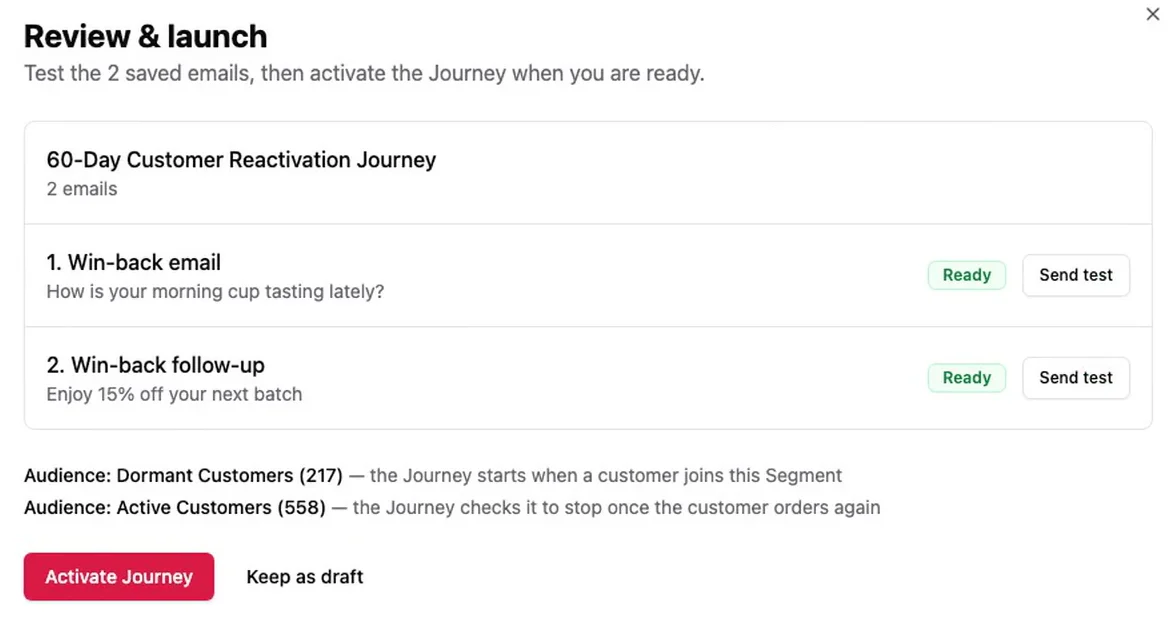
A demo store's win-back journey, drafted by Growth Copilot from one sentence: "Win back customers who haven't ordered in 60 days with two emails. Offer COMEBACK15 in the second one." It is a two-email version with a 60-day window from the prompt, not the three-email series above. Nothing goes out until you review and approve it: you can test each email, then activate the journey or keep it as a draft.
Related Posts
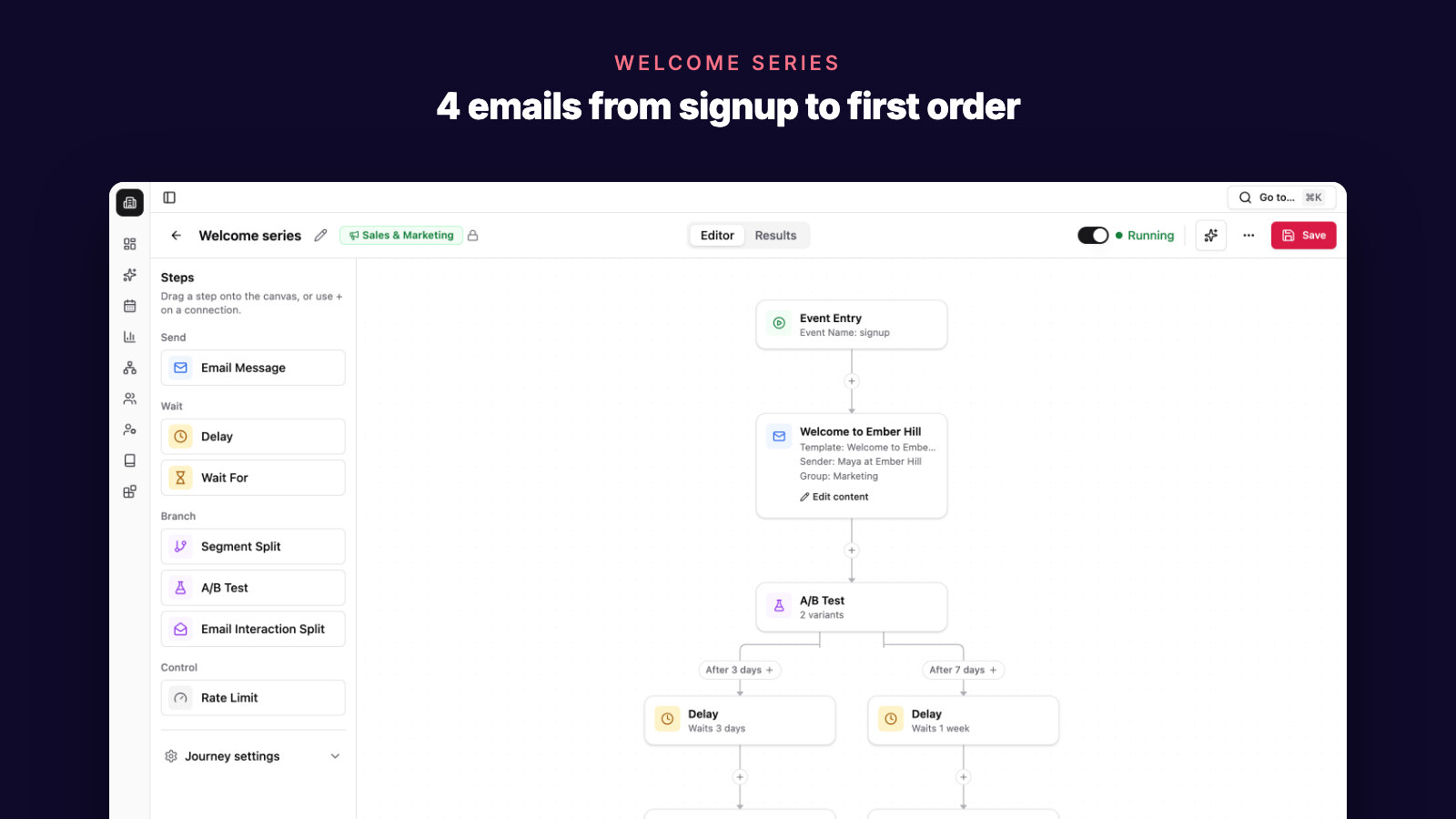
Shopify Welcome Email Series: 4 Emails to a First Order
A 4-email welcome series for Shopify and WooCommerce stores: who gets it, what each email says, whether to offer a discount, and when to stop.
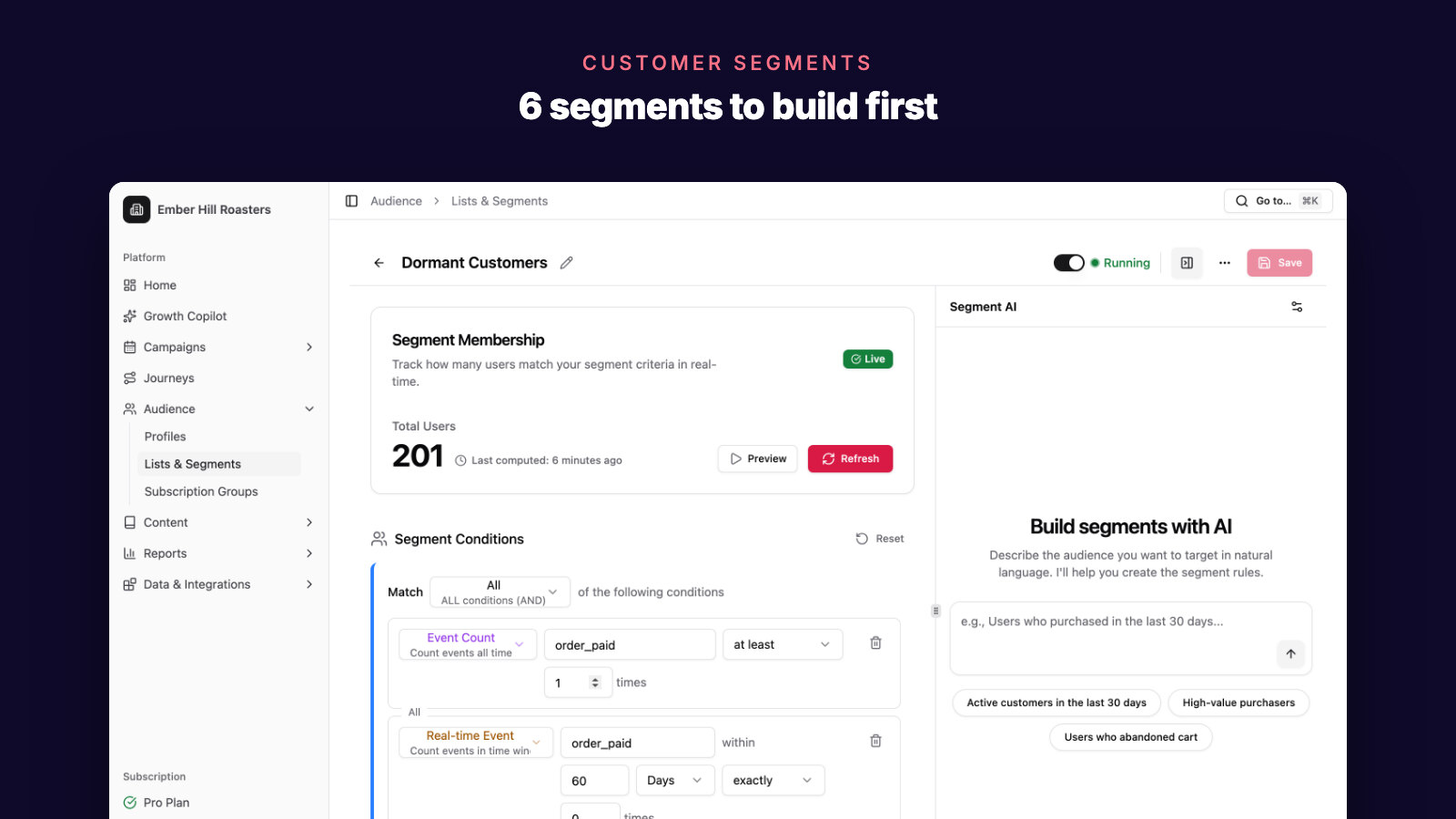
Ecommerce Customer Segmentation: 6 Segments to Build First
The six customer segments a Shopify or WooCommerce store should build first, how to define each from your own order data, and what to email each one.
5 Best Abandoned Cart Email Tools for Ecommerce in 2026
Compare the best abandoned cart email tools for ecommerce stores: AI recovery workflows, Shopify and WooCommerce data, discounts, segmentation, and revenue attribution.