Mailchimp Abandoned Cart for Shopify: 2026 Guide
Set up Mailchimp abandoned cart emails for Shopify, verify triggers and consent, test a 3-email sequence, troubleshoot the flow, and measure revenue now.
If you run a Shopify store on Mailchimp and you've never set up abandoned cart emails — or you set them up, and they don't seem to recover much — this guide is for you.
We'll walk through how the Mailchimp for Shopify integration works in 2026, how to build and test the flow, and the limits you may hit as your store grows.
Quick answer
Connect the official Mailchimp for Shopify integration, confirm the correct store and audience, choose the
Abandons carttrigger, set a wait and eligibility filters, add an email with cart content and a checkout-link button, test with a real eligible profile, then turn on the flow. Treat a one-, 24-, and 72-hour sequence as a starting experiment—not a guaranteed benchmark—and stop the flow after purchase.
How Much Revenue Is Actually Sitting in Your Abandoned Carts
Do not estimate recoverable revenue from a universal abandonment percentage. Start with your own eligible cart events, delivered messages, clicks, completed purchases, and attributed revenue. A useful test sequence can look like this:
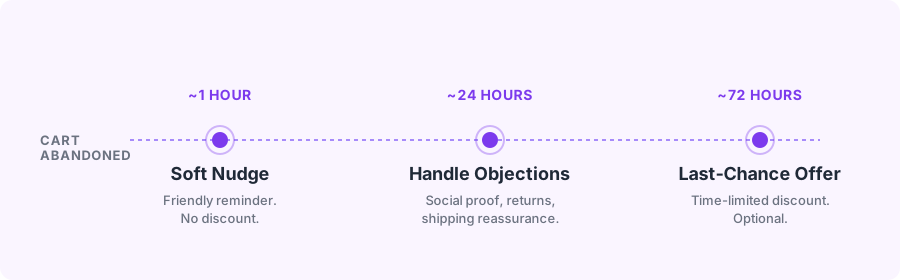
We'll walk through each email in detail later. First, let's look at what it takes to set this up inside Mailchimp.
Can Mailchimp Actually Do Shopify Abandoned Cart Emails in 2026?
Yes — but with caveats worth knowing upfront.
What's required:
- The official Mailchimp for Shopify app (installed via the Shopify App Store)
- A Mailchimp plan that includes the automation-flow features you need; check current Mailchimp pricing before publishing the flow
- Customer sync enabled between Shopify and Mailchimp
What's worth knowing before you start:
- Most updated Shopify data syncs near real time. Mailchimp says discount codes can take several hours. Test the exact cart event and timing in your store rather than assuming a fixed delay.
- Pricing scales with contacts, not sends. As your list grows, your Mailchimp bill climbs — even for subscribers who never open an email.
- Mailchimp's templates don't inherit your Shopify brand. You'll do template design work inside Mailchimp, separate from your store's theme.
If you're already on Mailchimp and just want abandoned cart to work, the setup below gets you there. If you're still evaluating, tools built natively for Shopify (like SegmentFlow.ai) skip most of the setup by reading your store data directly. We'll come back to that trade-off at the end.
Step-by-Step: Setting Up Abandoned Cart Recovery in Mailchimp
Here's the exact sequence. This assumes you already have a Mailchimp account.
1. Install the Mailchimp for Shopify App
From your Shopify admin, go to Apps → Shopify App Store and search for "Mailchimp". Install the official Mailchimp app published by Intuit Mailchimp.
2. Connect Your Mailchimp Account
Open the app from your Shopify admin. You'll be prompted to log in to Mailchimp or create an account. Authorize the connection.
3. Enable Customer Data Sync
Inside the Mailchimp app settings in Shopify, turn on customer and order sync. This is what feeds the abandoned cart trigger.
It may take several minutes — sometimes longer for stores with large customer lists — for the initial sync to complete. Check the sync status in the app before moving on.
4. Open Mailchimp Automations
In Mailchimp, open Automations and build or select an automation flow for the connected store. UI labels can vary by plan and account, so follow Mailchimp's current abandoned cart automation guide.
5. Select the Abandoned Cart Trigger
Choose the Shopify Abandons cart trigger. Mailchimp also exposes separate abandoned-checkout and abandoned-browse triggers, so match the trigger to the behavior you intend to recover.
6. Choose the Store and Entry Rules
Choose the connected Shopify store, set the wait, and add entry filters for consent, geography, cart value, product, or other eligibility rules you actually need. Confirm that a completed purchase exits or suppresses later recovery messages.
7. Build the Email(s)
Add a Send email step. Use Mailchimp's cart-content block and checkout-link button, then verify product name, image, price, currency, and recovery URL with a real test cart.
8. Set the Send Delays
Start by testing Email 1 at roughly one hour. If volume supports a longer experiment, add messages around 24 and 72 hours. These are hypotheses to test against your store data, not universal optimal times.
9. Activate the Journey
Review the flow, check preview rendering, and set the journey to Active. It will start running on the next abandonment event.
10. Monitor for the First Week
Check your Mailchimp journey report daily for the first week. Look for:
- Emails actually sending (if nothing sends, sync isn't working)
- correct cart content and checkout links
- clicks, completed purchases, and attributed revenue
- bounces, complaints, unsubscribes, and purchase-exit behavior
A 3-Email Starting Sequence to Test
Setting up abandoned cart in Mailchimp is one thing. Writing emails that recover carts is another. Most stores we've seen send a single "You left something in your cart" email and call it done. They're leaving most of the recoverable revenue on the table.
Here is a three-email starting sequence. Compare it with a one-email control when your volume is large enough; keep only the extra messages that create incremental orders without excessive discounts, complaints, or unsubscribes.
Email 1 — The Soft Nudge (send ~1 hour after abandonment)
Goal: Remind, don't sell. Assume the customer got distracted, not that they don't want the product.
Subject line patterns that work:
- "Did you forget something?"
- "Your cart is waiting"
- "{{product name}} is still in your cart"
Body structure:
- A single line of friendly copy
- The product image, large and clear
- The product name and price
- A single "Complete My Order" CTA button linking back to checkout
- No discount — you're training shoppers to abandon on purpose if you offer one this early
Why test it: Some abandonments are interruptions rather than price objections. A gentle reminder lets you test that explanation without giving margin away.
Email 2 — Objection Handling (send ~24 hours after abandonment)
Goal: Address the silent reason they didn't finish. Usually one of: shipping concerns, fit/size uncertainty, trust in the brand.
Subject line patterns:
- "Questions about {{product name}}?"
- "Still thinking it over?"
- "Here's what other customers think of {{product name}}"
Body structure:
- One short paragraph addressing the most common objection for your product category
- A customer review or star rating (social proof)
- Shipping or returns reassurance ("Free returns within 30 days")
- The product image and cart link
- Same "Complete My Order" CTA
Why this works: By 24 hours, the people who didn't come back on the nudge have a real hesitation. They need a reason to trust the purchase, not another reminder that it exists.
Email 3 — The Last-Chance Offer (send ~72 hours after abandonment)
Goal: Recover the shoppers who won't buy without a push.
Subject line patterns:
- "Last chance — your cart is about to expire"
- "A little something to help you decide"
- "10% off {{product name}} — today only"
Body structure:
- A clear, time-limited discount only if the margin and test design support it
- An explicit expiration window ("expires in 24 hours")
- Product image, price, discount code visible
- Same cart-recovery CTA
Why test it: A late offer may convert price-sensitive shoppers, but it also spends margin and can train repeat customers to wait. Use a holdout or discount-code comparison before assuming the offer is incremental.
Warning: Some stores skip Email 3 entirely. If discounting is outside your brand strategy, drop this email. Don't weaken your pricing discipline for the sake of a template.
Why Your Abandoned Cart Emails Might Not Be Recovering Carts
If you set up the flow and the numbers are disappointing, it's almost always one of these five problems.
1. The Wrong Event or Store Is Entering the Flow
Mailchimp distinguishes abandoned cart, abandoned checkout, and abandoned browse. A flow can look healthy while listening for the wrong event, store, or audience.
Fix: Confirm the connected store, audience, trigger, wait, entry filters, consent, and flow status. Mailchimp says most updated Shopify data syncs near real time, with discount codes updating every few hours. Use its Shopify syncing guide and test the actual event before changing delays.
2. Your Emails Are Landing in the Promotions Tab
Gmail and Apple Mail frequently classify abandoned cart emails as promotional. When they do, your email lands in a tab the customer checks once a week — not the primary inbox. Open rates crater. You never see the recovery.
Fix: Keep your subject lines and body copy direct. Avoid exaggerated sales language in Email 1. Run authentication checks on your sending domain—if SPF or DKIM is misconfigured, providers can downgrade delivery. See why Gmail says emails appear suspicious for the fixes.
3. The Email Doesn't Look Like Your Store
Mailchimp templates don't automatically inherit your Shopify theme. If your abandoned cart email is generic gray boxes and default fonts while your store is all custom brand typography, customers notice. Some assume the email is a phishing attempt.
Fix: Upload your logo, set your brand colors in the Mailchimp template editor, and use product images pulled from Shopify (not stock photos). At minimum, the email should look like it came from the store the customer was just on.
4. You're Discounting Too Early
Offering a discount in Email 1 can train repeat customers to abandon their carts on purpose. They'll start expecting it. Your long-term margin can drop even as short-term recovery improves.
Fix: No discount before Email 3. Let the first two emails recover full-price buyers; reserve the discount for the shoppers who genuinely need it.
5. There's No Product Image or a Tiny One
Most abandonment is visual — the customer was looking at the product, got pulled away, and forgot what it looked like. An abandoned cart email without a large product image is missing the whole point.
Fix: Make the product image the hero of Email 1. At least 400px wide. Linked to the cart recovery URL.
When It's Time to Outgrow Mailchimp for Abandoned Cart
Mailchimp gets you to a functional abandoned cart flow. It's a reasonable choice for stores just starting out. But most Shopify merchants hit one of these walls within a year:
Pricing scales on contacts you don't email. A Mailchimp list with 10,000 contacts costs the same whether you email all of them or 20% of them. For stores with a lot of historical, inactive contacts, this gets expensive fast.
The Customer Journey Builder has ceiling. Want to trigger different emails based on the product someone abandoned? Or suppress the flow for customers who bought recently? You'll spend a weekend trying to build the logic, and some of it isn't supported natively.
Template design drifts from your store. Every time you redesign your Shopify theme, you're re-doing work in Mailchimp. Two tools, two brand systems, twice the maintenance.
You're writing the emails yourself. Mailchimp gives you a template and a blinking cursor. Every campaign, every abandoned cart variant, every seasonal refresh — you're writing it. That's a part-time job most solo Shopify founders don't have time for.
At that point, Shopify-first ecommerce tools can start paying for themselves. SegmentFlow reads your Shopify catalog directly, drafts abandoned cart emails using your products and brand, and queues the sequence for approval. There is no separate Customer Journey Builder or template editor to maintain.
But if you're on Mailchimp and it works for your current volume, don't switch for the sake of switching. The sequence above will recover real revenue from the tool you already have.
Frequently Asked Questions
Does Mailchimp still work with Shopify in 2026?
Yes. The official Mailchimp for Shopify app is available on the Shopify App Store and supports customer sync, order data, and abandoned cart automations.
How much does abandoned cart automation cost in Mailchimp?
Availability depends on the current Mailchimp plan and automation features. Check the live pricing and feature table; do not choose from an old dollar figure because contact tiers and included features change.
How many emails should be in an abandoned cart sequence?
Start with one clear reminder. Test a second and third message around 24 and 72 hours only if the additional messages create incremental orders without unacceptable discounts, unsubscribes, or complaints.
What's a good abandoned cart recovery rate?
Use your own eligible carts as the denominator and measure completed purchases plus attributed revenue. Compare periods or holdouts with the same eligibility rules; a universal recovery-rate target can hide differences in traffic, checkout behavior, products, and consent.
Should I offer a discount in the first abandoned cart email?
No. Discounting in the first email trains customers to abandon carts intentionally, erodes your margins, and converts people who would have bought at full price. Reserve the discount for the third email, if at all.
How do I know if my abandoned cart emails are landing in spam?
Use Google Postmaster Tools for your sending domain. If placement is dropping, check SPF/DKIM/DMARC first — authentication issues are the most common cause of Promotions-tab and spam-folder placement.
Can I A/B test abandoned cart emails in Mailchimp?
Test one variable at a time: timing, subject line, objection-handling copy, or discount. If the account's flow tools do not support the comparison you need, compare clearly defined cohorts and keep eligibility consistent.
Shipping the Setup
If you follow the walkthrough above, you should have a working three-email abandoned cart flow in Mailchimp within a couple of hours. The first week of data will tell you whether deliverability, timing, and sync are healthy. The next month will tell you how much revenue you're recovering.
If the numbers are good, you just bought yourself a recurring revenue channel that compounds as your store grows. If they aren't, the troubleshooting list above covers the most common causes.
For the wider stack decision, compare Shopify marketing automation tools, Shopify Email vs Mailchimp, and the setup guide for syncing Shopify customers with Mailchimp.
If setting all of this up in Mailchimp feels like a project you do not have time for, SegmentFlow is built to draft abandoned-cart, welcome, and newsletter content from Shopify store data for your approval.
Either way: measure which carts are actually recoverable and improve the flow from your own store data.
Related Posts
Shopify Email vs Mailchimp: Which Should You Use?
Compare Shopify Email and Mailchimp for ecommerce email marketing, pricing, automation, abandoned carts, segmentation, and store data.
How to Sync Shopify Customers with Mailchimp
Sync Shopify customers with Mailchimp safely with a 12-step setup and QA guide for consent, orders, events, automations, and duplicate contacts in 2026.
5 Best Abandoned Cart Email Tools for Ecommerce in 2026
Compare the best abandoned cart email tools for ecommerce stores: AI recovery workflows, Shopify and WooCommerce data, discounts, segmentation, and revenue attribution.